couchbase/operational-insights repository overview
Introduction to Operational Insights
Operational Insights is a self-managed, JSON-native NoSQL analytical database. It serves to unify data from diverse sources, allowing for the execution of complex analytical queries and the extraction of timely insights.
Operational Insights harnesses the power of NoSQL for analytics. It integrates seamlessly with both Couchbase Server and the Couchbase Capella cloud platform, enabling the creation of real-time, adaptive applications.
Traditionally, analyzing JSON data in NoSQL databases requires complex transformations, like flattening, to prepare it for analytics, causing delays and hindering real-time insights. Operational Insights eliminates these ETL complexities by using a unifying JSON data model with schema flexibility. This allows data to fluidly evolve at its source without requiring manual schema or transformation management. This facilitates a Zero ETL environment, leading to faster time to insight, reduced costs, and increased agility.
Operational Insights is the successor to Couchbase Enterprise Analytics. If you are coming from the couchbase/enterprise-analytics image, see "Upgrading from Enterprise Analytics" below.
Features
- A column-oriented, Log-Structured Merge (LSM) tree–based storage engine delivers scalable analytic performance and capacity for customers with self-managed on-premises or cloud deployments. The LSM tree architecture provides high write throughput for fast data ingestion, while columnar storage accelerates analytical queries by accessing only the necessary columns.
- A shared-nothing compute and shared-object storage architecture that allows customers to scale compute resources independently of storage.
- A choice of object stores for the underlying storage layer: Amazon S3, S3-compatible storage, Azure Blob Storage and Google Cloud Storage. See Supported Object Storage.
- An enhanced MPP-based query engine enables scalable, real-time analytical query computation.
- A cost-based optimizer improves query execution without requiring user intervention. Using a sample-based approach, it quickly estimates data statistics from a small subset of the data, enabling it to identify the lowest-cost query plan without scanning the entire dataset.
- A query plan cache that reuses compiled plans for repeated queries, and an Index Advisor that recommends secondary indexes for your queries, plus index-only query plans that serve requests entirely from covered indexes.
- Vector search: vector indexes with exact (KNN) and approximate (ANN) similarity search, and a
CLUSTER BYclause for semantic clustering of query results. - Python user-defined functions, deployed as libraries and run in an isolated sandbox. Python UDFs require the separate
operational-insights-udfadd-on; see Python UDFs. - Zero ETL for incoming data, with real-time ingestion capabilities powered by Confluent Kafka, that provide the ability to connect, capture, and extract data from nearly any database or application. One can optionally modify the target JSON structure of the incoming data while in transit, for example, to omit or modify its fields.
- Continuous, row-level change data capture from Oracle and SQL Server, powered by Kafka links and Debezium connectors.
- Data Lakehouse capabilities that enable direct querying from supported object storage, with support for formats including JSON, Parquet, Avro, CSV, TSV, Delta tables, and Apache Iceberg tables via Iceberg catalogs, providing the ability for queries to combine external data with other data in Operational Insights.
- A SQL++ based path for writing the results of a query back to the Couchbase Operational data service to support adaptive applications.
- A tabular view facility that provides native SQL-based support for Tableau, PowerBI and Apache Superset for building business reports, visualizations, and dashboards.
- JWT authentication for REST API and query requests, including tokens issued by external identity providers.
- An asynchronous REST API for submitting long-running queries without blocking application workflows, and multi-statement requests that run several semicolon-separated statements in a single request.
This Docker image is designed to make it easy to run Operational Insights for development, testing, and proof-of-concept environments.
Quickstart with Operational Insights and Docker
To quickly get started with Operational Insights, you can run an instance using Docker. This is ideal for development and testing purposes.
Prerequisites
These instructions assume the following:
- Docker installed and running
- A host that meets the container requirements described under "Container Requirements" below
- No services running on ports
8091or8095 - No existing containers named
insights(orversitygwif using Versity S3 Gateway) - No existing Docker network named
insights-net
1. Create a Docker network
Create a user-defined network so the container can communicate with other services if needed.
docker network create insights-net
2. Start Versity S3 Gateway (optional)
If you don't have an object store to use as the blob storage backend, you can run Versity S3 Gateway locally. Otherwise, you need to configure Operational Insights to use one of the other supported blob storage backends — Amazon S3, S3-compatible storage, Azure Blob Storage, or Google Cloud Storage. See Supported Object Storage.
Start the gateway, then create a bucket called insights-storage:
docker run -d --name versitygw --network insights-net -v insights-s3-data:/data \
       versity/versitygw --access Administrator --secret password posix /data

docker exec versitygw versitygw admin --access Administrator --secret password \
       --endpoint-url http://localhost:7070 create-bucket --bucket insights-storage --owner Administrator
The insights-s3-data named volume keeps the stored data when the container is removed or re-created, for example to upgrade the image; without it, the data lives only as long as the container does. The gateway also needs /data to exist, which the volume provides: for a throwaway trial without one, serve from a directory already in the image, such as posix /tmp. Use a named volume rather than a host directory: on macOS, a bind-mounted folder needs extra gateway options and treats object keys as case-insensitive. Replace Administrator / password with credentials of your own.
3. Start the Operational Insights container
Run the Operational Insights container with host and port mappings for the Couchbase Web Console and Operational Insights service, exposed on ports 8091 and 8095 on the host.
docker run -d --name insights --network insights-net -p 8091:8091 -p 8095:8095 couchbase/operational-insights
To connect to this container from an SDK, also publish the Data Service ports, e.g. -p 18091:18091 -p 18095:18095 -p 11207:11207 -p 11210:11210. See "Ports" below.
4. Initialize the cluster
Next, visit http://localhost:8091 on the host machine to see the Web Console to start Operational Insights setup.
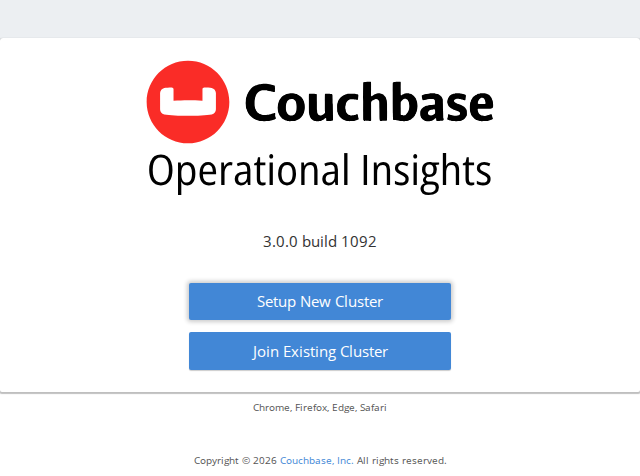
Walk through the Setup wizard
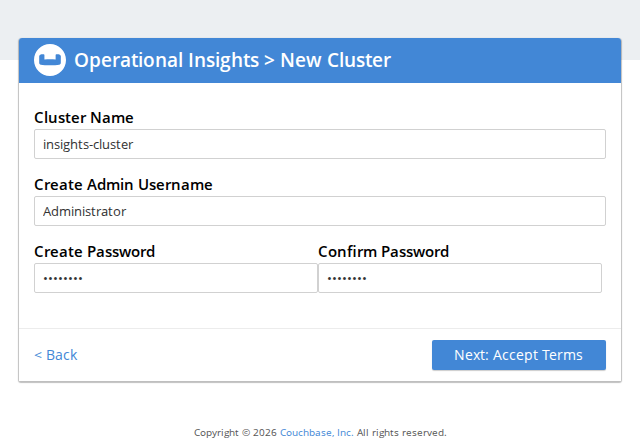
If using Versity S3 Gateway, configure the blob storage settings in the wizard as follows:
| Setting | Value |
|---|---|
| Storage Scheme | S3-Compatible Storage |
| Storage Endpoint | http://versitygw:7070 |
| Bucket Name | insights-storage |
| Bucket Region | us-east-1 |
| Authentication | Static Credentials |
| Access Key ID | Administrator |
| Secret Access Key | password |
| Use Path-Style Addressing | Enabled |
| Storage Partitions | 16 |
Otherwise, configure the blob storage settings to point to your chosen backend (e.g. AWS S3 or another S3-compatible service/appliance).
A small number of storage partitions suits a development cluster; the default of 128 adds unnecessary overhead.
Note: The storage scheme and the number of storage partitions are fixed at cluster setup and cannot be changed afterwards. Choose them before you finish the wizard.
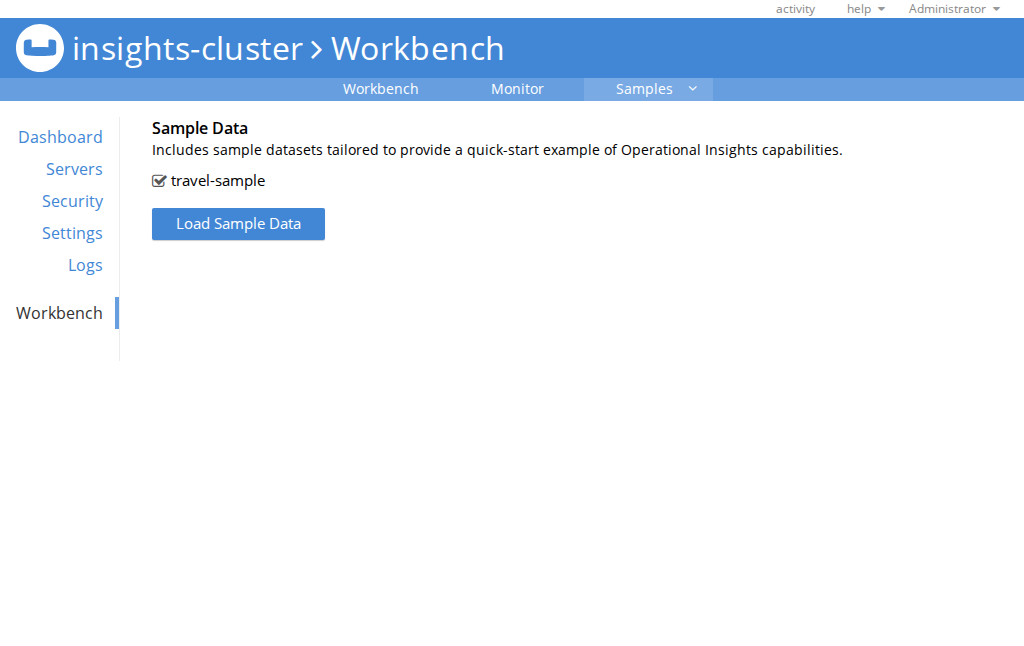
5. Install travel-sample dataset
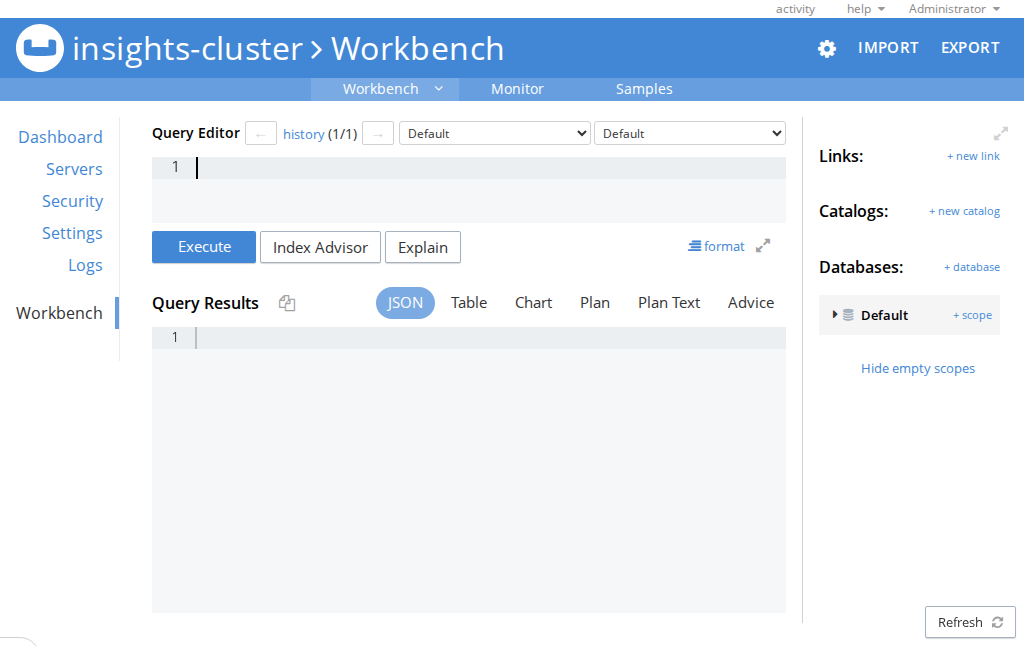
After completing the setup, the console will load.
6. Execute a sample query
You can now run a sample query to verify that everything is working correctly. For example, you can run the following SQL++ query to get a count of airlines in the travel-sample.
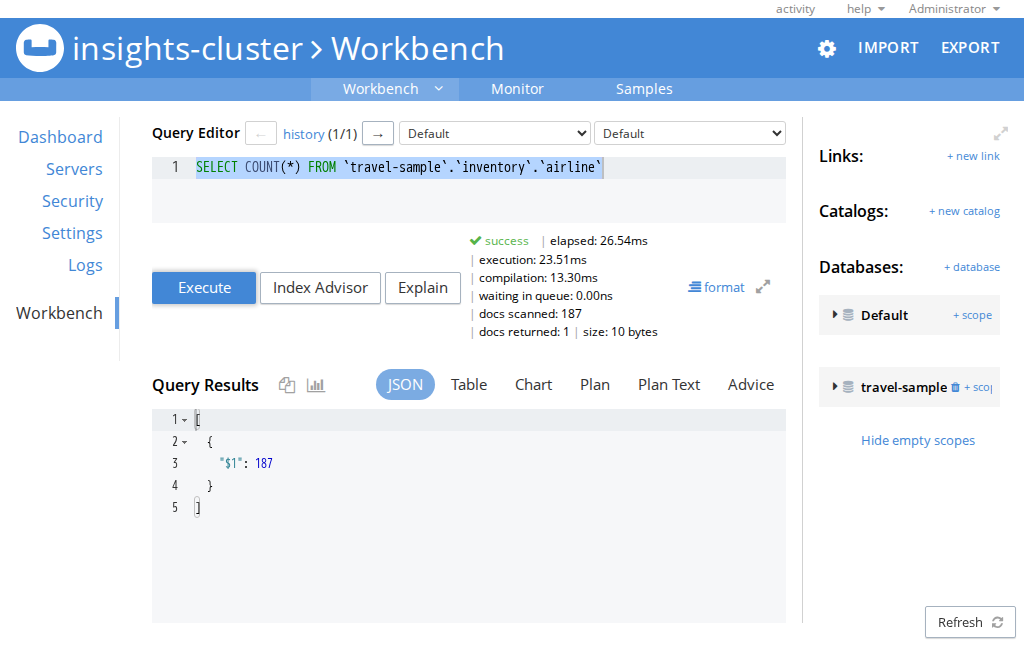
7. Next steps
You can now explore the features of Operational Insights, such as creating views, running more complex queries, and integrating with other data sources.
See the Operational Insights documentation for more information.
Alternatively, you can follow the instructions below to set up a multi-node cluster using Versity S3 Gateway as the blob storage backend.
Running a Two-Node Operational Insights Cluster with Versity S3 Gateway
The following example shows how to start a two-node Operational Insights cluster, using Versity S3 Gateway as the blob storage backend.
Prerequisites
These instructions assume the following:
- Docker installed and running
- A host that meets the container requirements described under "Container Requirements" below
- No existing containers named
versitygw,insights1, orinsights2 - No existing Docker network named
insights-net - No services running on ports
8091,8095,9091, or9095
1. Create a Docker network
Create a user-defined network so the containers can talk to each other by name.
docker network create insights-net
2. Start Versity S3 Gateway
Start the gateway with its data on the insights-s3-data named volume, then create a bucket called insights-storage.
docker run -d --name versitygw --network insights-net -v insights-s3-data:/data \
       versity/versitygw --access Administrator --secret password posix /data

docker exec versitygw versitygw admin --access Administrator --secret password \
       --endpoint-url http://localhost:7070 create-bucket --bucket insights-storage --owner Administrator
3. Start the first Operational Insights node
Run the first node (insights1) with host and port mappings for the Couchbase Web Console and Analytics service.
docker run -d --name insights1 --network insights-net --hostname insights1.example.com --network-alias insights1.example.com \
       -p 8091:8091 -p 8095:8095 couchbase/operational-insights
4. Start the second Operational Insights node
Run the second node (insights2) with its own mapped ports so you can access it separately from insights1.
docker run -d --name insights2 --network insights-net --hostname insights2.example.com --network-alias insights2.example.com \
       -p 9091:8091 -p 9095:8095 couchbase/operational-insights
5. Wait for the nodes to be ready
Before proceeding, ensure the nodes are fully booted and ready for configuration. You can check the status of each node by querying the /pools/default API. The API should return a 404 status with the text 'unknown pool' when the server is ready to accept configuration.
e.g.
$ curl http://localhost:8091/pools/default
"unknown pool"
6. Initialize the nodes
Initialize insights1 and insights2 nodes with hostnames and admin credentials.
docker exec insights1 couchbase-cli node-init \
  --cluster http://localhost:8091 \
  --username Administrator \
  --password password \
  --node-init-hostname insights1.example.com

docker exec insights2 couchbase-cli node-init \
  --cluster http://localhost:8091 \
  --username Administrator \
  --password password \
  --node-init-hostname insights2.example.com
7. Configure blob storage to use Versity S3 Gateway
- Configure Operational Insights to use the gateway endpoint and its credentials
docker exec insights1 curl -s -X POST http://localhost:8091/settings/operationalInsights \
  -d blobStorageScheme=s3 \
  -d blobStorageBucket=insights-storage \
  -d blobStorageRegion=us-east-1 \
  -d blobStorageEndpoint=http://versitygw:7070 \
  -d blobStoragePathStyleAddressing=true \
  -d blobStorageAccessKeyId=Administrator \
  -d blobStorageSecretAccessKey=password \
  -d numStoragePartitions=16
The response echoes the settings back, with the secret masked, together with a warning that the HTTP endpoint is insecure. That is expected for a local gateway; use an HTTPS endpoint for anything beyond development.
numStoragePartitions=16 keeps the number of storage partitions low; the default of 128 adds unnecessary overhead for a small development cluster.
Note: The storage scheme and the number of storage partitions are fixed once the cluster is initialized, so this step must come before
cluster-initbelow.
To use a backend other than S3 or S3-compatible storage, set blobStorageScheme=azblob for Azure Blob Storage or blobStorageScheme=gs for Google Cloud Storage.
8. Initialize the cluster
Initialize the Operational Insights cluster.
docker exec insights1 couchbase-cli cluster-init \
  --cluster http://localhost:8091 \
  --cluster-username Administrator \
  --cluster-password password
9. Add the second node (insights2) to the cluster (insights1)
Add insights2 to the cluster, and perform a rebalance.
docker exec insights1 couchbase-cli server-add \
  --cluster http://localhost:8091 \
  --username Administrator \
  --password password \
  --server-add insights2.example.com \
  --server-add-username Administrator \
  --server-add-password password

docker exec insights1 couchbase-cli rebalance \
  --cluster http://localhost:8091 \
  --username Administrator \
  --password password
10. Access the Web Console
Once rebalanced, the cluster is ready to be used. Access the UI at:
- insights1: http://localhost:8091
- insights2: http://localhost:9091
Container Requirements
| Requirement | Details |
|---|---|
| CPU | 2 GHz dual core x86_64 supporting AVX2 or later, or 2 GHz dual core 64-bit ARM v8. The container aborts at startup if the host CPU does not meet the required microarchitecture. |
| RAM | 4 GB minimum; 32 GB or more recommended |
| Disk | 8 GB minimum, block-based (HDD, SSD, EBS, iSCSI). Network file systems such as CIFS and NFS are not supported. |
For development and testing you can go below these minimums — as little as 1 GB of free RAM and a single core — but production deployments must meet them. See System Resource Requirements.
The image is published for both linux/amd64 and linux/arm64.
For production deployments, raise the container's ulimits:
docker run -d --name insights \
  --ulimit nofile=40960:40960 \
  --ulimit core=100000000:100000000 \
  --ulimit memlock=100000000:100000000 \
  couchbase/operational-insights
unlimited is not a supported value, so core and memlock are set to 100 GB. If your host has more than 100 GB of RAM, raise these to match. See Deployment Considerations for Virtual Machines and Containers.
Ports
The image exposes the following ports:
| Port | Description |
|---|---|
| 8091 | Cluster administration REST/HTTP traffic, including the Web Console |
| 8095 | Operational Insights Service REST/HTTP traffic |
| 9123 | Prometheus metrics |
| 11207 | Data Service (SDK cluster topology and auditing, TLS) |
| 11210 | Data Service (SDK cluster topology and auditing) |
| 11280 | Data Service Prometheus metrics |
| 18091 | Cluster administration REST/HTTP traffic, including the Web Console (TLS) |
| 18095 | Operational Insights Service REST/HTTP traffic (TLS) |
A multi-node cluster also requires node-to-node connectivity on a number of additional ports. When each node runs in its own container on a shared Docker network, this works without further configuration. For the full list, see Operational Insights Ports.
Volumes
Operational Insights writes all persistent, node-specific data — including cluster configuration, local storage, and logs — under /opt/couchbase/var, which the image declares as a volume. A volume is optional for a quick trial, but needed if you want the data to survive re-creating the container, for example to upgrade the image. Without a named volume, Docker gives each new container a fresh, empty anonymous volume, and the old data is left orphaned. For persistent deployments, mount a named Docker volume or host directory to this path.
Example:
docker run -d --name insights1 -v insights1-data:/opt/couchbase/var couchbase/operational-insights
Leaving /opt/couchbase/var inside the container's union filesystem also results in some performance degradation.
Note: If SELinux is enabled and you are bind-mounting a host directory, run
chcon -Rt svirt_sandbox_file_t <host-dir>once before starting the first container on that host.
Upgrading from Enterprise Analytics
Operational Insights 3.0 replaces Enterprise Analytics. The image name changes from couchbase/enterprise-analytics to couchbase/operational-insights, and the install prefix inside the container changes from /opt/enterprise-analytics to /opt/couchbase. Online upgrade is the recommended approach. For an offline upgrade of a Docker cluster, the existing data volume must be mounted at both the old and the new path; see Upgrade a Docker Cluster Offline and Upgrade from Enterprise Analytics.
Additional References
- Operational Insights documentation
- Install Operational Insights Using Docker
- Do a Quick Install
- Release Notes
License
Operational Insights is licensed under the Couchbase Enterprise License Agreement, available on the Legal Agreements page. The license is free for development and testing; a paid subscription is required for production deployment. See the pricing page for details.
Tag summary
Content type
Image
Digest
sha256:590ee7bff…
Size
716.9 MB
Last updated
about 23 hours ago
docker pull couchbase/operational-insights